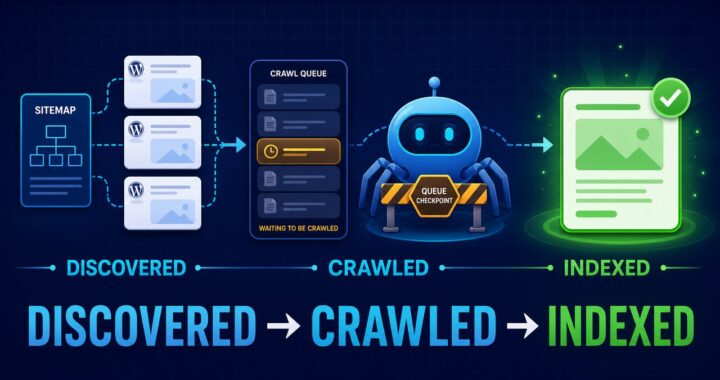

Quick answer: “Page with redirect” means the inspected URL sends visitors and Googlebot to another URL, so Google normally does not index the redirecting URL. If the redirect is intentional, this status is usually correct: inspect the destination instead. If it is not intentional, find which WordPress, plugin, hosting or server rule creates the redirect, remove that rule, and make sure the original URL returns a normal 200 response.
The important question is not “How do I force Google to index the redirect?” It is “Which URL should be the permanent search result?” Your redirects, canonical tags, XML sitemap and internal links should all support that same answer.
What “Page with redirect” means
Google describes this status as a non-canonical URL that redirects to another page. The redirecting URL itself will not be indexed. The destination might or might not be indexed, depending on its own accessibility, index directives, content and canonical signals.
This is normal for an old post URL that permanently redirects to its replacement, an HTTP URL that redirects to HTTPS, or a non-preferred www version that redirects to the preferred host. It needs attention when an important current URL redirects unexpectedly, the destination is wrong, or your site keeps linking to the redirecting version.
Decide whether the redirect is intentional
| Situation | Correct action |
|---|---|
| An old URL permanently moved to a relevant replacement | Keep a direct 301 or 308 redirect and optimize the destination |
| HTTP redirects to HTTPS, or non-preferred host redirects to the preferred host | Usually keep it; use the final URL everywhere internally |
| A current page redirects because of a mistaken rule | Remove the rule and restore a 200 response |
| The redirect points to an unrelated page or the homepage | Redirect to a relevant replacement or return a real 404/410 |
| Several redirects occur before the destination | Replace the chain with one direct redirect |
| The redirect is temporary | Use a temporary 302 or 307 only while the situation is temporary |
1. Inspect both URLs in Search Console
- Open URL Inspection and inspect the URL listed under “Page with redirect.”
- Record the destination URL shown by your browser after the redirect.
- Inspect that final destination as a separate URL in Search Console.
- Check whether the destination is indexed, crawlable and selected as canonical.
- Run Test live URL on the destination to check its current response.
Google notes that the live URL test follows redirects and tests the final URL, but it does not explicitly show that it followed a redirect. That is why you should inspect the source and destination separately instead of assuming the source page was tested as a normal page.
2. Check the redirect response and final destination
Open the source URL in a private browser window and note the final address. For a more exact check, use your browser’s Network panel or run the following command from a terminal:
curl -I https://example.com/old-url/
curl -I -L https://example.com/old-url/
The first command shows the source response and its Location header. The second follows the redirect path. An intentional permanent move should normally use 301 or 308 and finish on one relevant URL that returns 200.
If the final page returns an error, exposes noindex, is blocked from crawling, or points its canonical elsewhere, fix that destination before expecting it to appear in Search. Use the robots.txt indexing guide when crawl access is the problem.
3. Find what creates the WordPress redirect
WordPress redirects can originate from several layers. Change only the layer that actually produces the response:
- WordPress slug history: WordPress may redirect an older post slug after the permalink changes.
- Site Address settings: HTTP-to-HTTPS or
www-to-non-wwwnormalization can come from WordPress or hosting. - SEO or redirect tools: An existing redirect rule may point to an outdated destination.
- Hosting or CDN: Control-panel redirects, edge rules and forced HTTPS settings can run before WordPress.
- Server configuration: Apache
.htaccessor Nginx rules can redirect paths or entire hosts. - Theme or custom code: A PHP redirect or template condition can send selected visitors elsewhere.
Disable nothing blindly. First compare the response with the relevant WordPress, hosting and server settings. Preserve a copy of any rule before editing it, then change one source and retest.
4. If the redirect is intentional, align every signal
- Keep one direct permanent redirect from the old URL to the most relevant replacement.
- Make the destination return
200and allow indexing. - Give the destination a self-referencing canonical.
- Replace internal links to the old URL with links to the final URL.
- Include only the destination in the XML sitemap.
- Use the destination in navigation, breadcrumbs, structured data and social sharing fields.
Do not request indexing for the redirecting URL as if it were the page you want in Search. Inspect and request the final destination instead. If Search Console cannot retrieve the sitemap containing that destination, follow the Yoast sitemap Couldn’t fetch fixes.
5. If the redirect is accidental, restore the page carefully
- Identify the exact redirect rule and save its previous value.
- Remove or correct only that rule.
- Open the original URL while logged out and confirm that it returns its intended content.
- Confirm an HTTP
200response, an indexable robots directive and a self-referencing canonical. - Add the URL to the sitemap only if it is the preferred indexable version.
- Update internal links so they point directly to it.
- Run URL Inspection’s live test and request indexing for the restored URL.
If Google chooses a different canonical after the accidental redirect is removed, compare the URLs with the Google chose different canonical WordPress guide. If Google crawls the restored page but still does not index it, use the Crawled – currently not indexed checklist.
6. Remove redirect chains and loops
A chain sends one URL through multiple redirects before reaching the page. A loop eventually sends the browser back to a URL already visited. Both waste requests and can prevent users or crawlers from reaching the content.
Update every known old URL so it redirects directly to the final destination. Also change internal links and sitemap entries to the final URL. Google can follow redirect chains, but its site-move guidance recommends avoiding chains and keeping any unavoidable chain short.
7. Verify the fix
- The intended source returns the expected 301/308, or a restored page returns 200.
- An intentional redirect reaches the correct destination in one hop.
- The destination returns 200 and is not blocked or marked
noindex. - The destination canonical points to itself.
- Internal links use the final URL rather than the redirecting URL.
- The XML sitemap includes the final indexable URL and excludes the redirecting source.
- URL Inspection shows the correct live result for the final URL.
The Page indexing report reflects Google’s last processed crawl, not necessarily the current live response. After correcting the site, allow Google time to recrawl the URLs before treating an unchanged report as proof that the fix failed.
What not to do
- Do not try to index both the redirecting URL and its destination.
- Do not redirect many unrelated URLs to the homepage.
- Do not leave old redirecting URLs in sitemaps or prominent internal links.
- Do not use a permanent redirect for a genuinely temporary test.
- Do not remove a correct HTTP-to-HTTPS redirect just to clear the report.
- Do not repeatedly request indexing while the redirect or destination is still wrong.
Sources
- Google Search Console: Page indexing report
- Google Search Central: Redirects and Google Search
- Google Search Central: Site moves with URL changes
- WordPress documentation: Working with WordPress and permalinks
Last reviewed: July 2026.