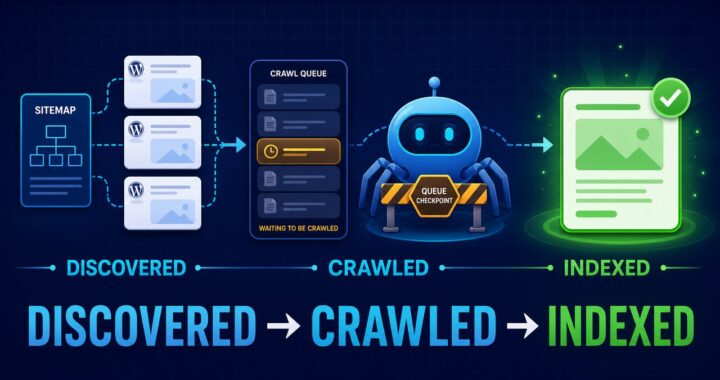
Quick answer: “Couldn’t fetch” means Google Search Console could not retrieve or process the sitemap URL you submitted. On a WordPress site using Yoast SEO, first confirm that /sitemap_index.xml opens publicly, then clear caches, resave permalinks, check security rules, and submit the sitemap index—not an individual post sitemap.
Before changing anything
Open an incognito window and visit https://yourdomain.com/sitemap_index.xml. A working Yoast sitemap displays an XML sitemap index with links such as post-sitemap.xml and page-sitemap.xml. Test it while logged out because Googlebot does not use your WordPress session.
- If the sitemap opens normally, continue with Fixes 6–10.
- If it returns 404, use Fixes 1–4.
- If it returns 403 or a security challenge, use Fix 5.
- If it is blank or malformed, use Fixes 2–4.
1. Confirm Yoast XML sitemaps are enabled
In WordPress, go to Yoast SEO → Settings → Site features. Under Technical SEO, make sure XML sitemaps is enabled. Use the “View the XML sitemap” link and copy the exact URL that opens.
2. Clear every cache layer
A cached 404 or HTML response can prevent Search Console from reading XML. Purge your WordPress cache plugin, server cache, CDN cache, and browser cache. With LiteSpeed Cache, use LiteSpeed Cache → Toolbox → Purge → Purge All. Reopen the sitemap in an incognito window afterward.
3. Refresh WordPress rewrite rules
Go to Settings → Permalinks and click Save Changes without changing the permalink format. This safely refreshes WordPress rewrite rules and often repairs a Yoast sitemap that suddenly returns 404.
4. Toggle the sitemap feature once
If the sitemap still fails, disable Yoast XML sitemaps, save, enable them again, and save once more. Clear caches after the second save. Do not repeatedly toggle the setting; one clean reset is enough.
5. Check security, firewall, and bot protection
A sitemap that works for an administrator can still be blocked for Googlebot. Check security-plugin logs, hosting firewall rules, Cloudflare bot protection, country blocking, and rate limits. The sitemap must return HTTP 200 without a login screen, cookie requirement, CAPTCHA, or browser-verification page.
Do not whitelist a random IP claiming to be Googlebot. Use Google’s documented reverse-DNS verification process or ask your host to verify legitimate Google crawlers.
6. Submit the correct sitemap URL
In Search Console, open Indexing → Sitemaps. Remove an incorrect submission if necessary, then submit only:
sitemap_index.xmlDo not submit a normal page, an HTML sitemap, the WordPress feed, or an admin URL. Make sure the Search Console property matches the live protocol and hostname.
7. Match HTTPS and the preferred hostname
If the site redirects from HTTP to HTTPS or from www to non-www, submit the final HTTPS sitemap. Check that every URL inside the XML also uses the final preferred hostname. Mixed hostnames can indicate an incorrect WordPress Address or Site Address under Settings → General.
8. Check the HTTP response and content type
The sitemap should return HTTP 200. Redirects may work, but submitting the final URL removes uncertainty. A response containing a theme page, PHP warning, maintenance notice, or security challenge is not a valid sitemap even if the browser displays something.
9. Look for a sitemap conflict
Use only one sitemap generator. Disable sitemap functionality in other SEO or sitemap plugins if Yoast is responsible for the sitemap. Also check whether custom code, a host feature, or WordPress core is exposing a second sitemap. Multiple sitemap URLs are not automatically harmful, but conflicting rules can produce redirects or inconsistent canonical URLs.
10. Retest, then wait for Search Console
After the sitemap opens publicly and returns valid XML, submit it once. Search Console may not update immediately. Avoid deleting and resubmitting it repeatedly. Use URL Inspection for one important post while the sitemap status processes.
How to verify the fix
- The sitemap opens while logged out.
- It returns HTTP 200.
- It contains only canonical URLs you want indexed.
- Individual child sitemaps open without errors.
- Search Console eventually reports Success instead of Couldn’t fetch.
What not to do
- Do not put
noindexon the sitemap. - Do not block the sitemap in robots.txt.
- Do not submit every post URL as a sitemap.
- Do not install a second SEO plugin just to create another XML file.
- Do not assume “Couldn’t fetch” means every page has disappeared from Google.
If Search Console reports that a page is indexed despite a robots.txt block, use the Indexed, though blocked by robots.txt WordPress fix to decide whether to unblock the page or allow crawling before applying noindex.
If it still says Couldn’t fetch
Ask your host for the access-log entries for the sitemap URL and confirm the response Googlebot received. Provide the timestamp, requested URL, HTTP status, and any firewall rule that triggered. That evidence is more useful than repeatedly changing SEO settings.
Sources
- Google: Build and submit a sitemap
- Google: Verify Googlebot and other Google crawlers
- Yoast: XML sitemaps
Last reviewed: July 2026. Menu labels can change between WordPress and Yoast versions.