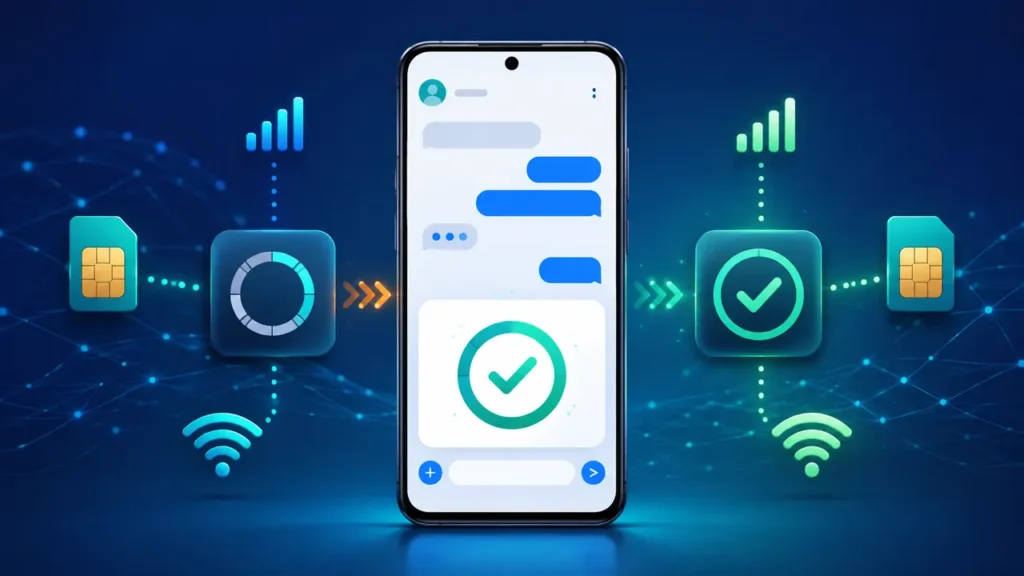
If Google Messages RCS is stuck on “Setting up” or “Trying to verify your phone number,” first confirm that Google Messages is updated and set as your default SMS app, then verify the correct number under Messages settings → RCS chats. Your SIM must be able to receive ordinary SMS, and on a dual-SIM phone the SIM used for calls should also be the data SIM. Google says “Connecting” means verification is still in progress; if “Trouble connecting. Awaiting retry” lasts more than 30 minutes, use the Details option to submit feedback.
Work through the checks below in order. Most are quick and do not erase your conversations. Do not repeatedly switch RCS off and on: Google warns that toggling RCS can remove you from group chats.
What the RCS status means
- Connected: RCS is ready.
- Connecting: Google Messages is verifying your phone number. Give it time.
- Trouble connecting. Awaiting retry: number verification has failed and will retry.
- Not supported: check the internet connection and carrier/device support.
To see the status, open Google Messages, tap your profile picture or initial, then choose Messages settings → RCS chats. On some versions, the menu is called Chat features.
1. Wait 30 minutes before changing anything
“Connecting” is not always an error. Leave the phone powered on with a stable mobile-data or Wi-Fi connection and wait at least 30 minutes. Keep the active SIM inserted. Opening and closing the screen repeatedly will not speed up verification.
If the status changes to Connected, stop here. If it becomes “Trouble connecting. Awaiting retry” or remains stuck beyond 30 minutes, continue.
2. Confirm the SIM can receive a normal SMS
Google verifies the number by SMS. Ask someone to send a plain text message to the affected number. Also send one reply. If ordinary texts do not arrive, RCS verification cannot finish reliably.
For missing SMS, solve that problem first with our Android phone not receiving text messages guide. Check signal, the active SIM, blocked numbers, and carrier service status before returning to RCS.
3. Use a stable data connection
RCS works over Wi-Fi or mobile data, but activation also depends on your phone and SIM being online. Turn off Airplane mode. Open a browser and load a new page, then briefly test both Wi-Fi and mobile data if one connection is unreliable. Avoid public Wi-Fi that requires a sign-in page.
If the RCS screen says the feature is disabled by your carrier, contact the carrier; an app reset cannot override that message.
4. Update Google Messages
Open the Play Store, search for Google Messages, and tap Update if available. After the update completes, restart the phone and recheck Messages settings → RCS chats.
If the update itself will not download, use these Google Play Store download-pending fixes before continuing.
5. Set Google Messages as the default SMS app
Google lists the default-SMS setting as an RCS requirement. Open Android Settings → Apps → Default apps → SMS app, then select Google Messages. The wording varies by phone, so you can also search Settings for “default SMS.”
Return to Google Messages and accept any prompt to make it the default. Existing standard SMS/MMS messages should remain available when you switch default apps.
6. Verify the phone number inside RCS settings
Open Google Messages → profile picture → Messages settings → RCS chats. If Verify your number appears, tap it, confirm the complete mobile number, and allow the verification SMS to arrive.
Check the country code carefully. Do not enter a landline, an inactive number, or the number from a second SIM. If the verification option does not appear, continue to the next checks rather than repeatedly editing the number.
7. Check Google’s phone-number verification setting
Android has a separate setting that lets Google periodically verify the number. Open Settings → Google → Mobile data & messaging → Phone Number Verification and make sure verification is allowed. Menu names can differ on manufacturer-modified Android versions.
After changing the setting, restart the phone once and wait for RCS to retry. Avoid switching it on and off repeatedly.
8. Match the call SIM and data SIM on dual-SIM phones
Google specifically advises dual-SIM users to configure the call SIM as the data SIM. Open Settings → Network & internet → SIMs (or your phone’s SIM manager), then select the same number for calls and mobile data while RCS is being activated.
In Google Messages, confirm that the displayed RCS number matches that SIM. Restart the phone after changing the default SIM, then wait up to 30 minutes.
9. Clear only the Google Messages cache
If the app interface is frozen or the status never refreshes, open Settings → Apps → Messages → Storage & cache → Clear cache, then force stop and reopen the app. Clearing cache removes temporary files, not your message history.
Do not choose Clear storage as a first step. It resets the app and may remove local settings. Google’s general Android app guidance recommends trying restart, update, force stop, and cache clearing before more disruptive resets.
10. Reset RCS once—or deactivate the old phone registration
If you recently changed phones, SIMs, messaging apps, or carriers, an old RCS registration can interfere. When you still have the old phone, open its Google Messages settings and turn RCS off there. On the current phone, use Messages settings → RCS chats to turn RCS off once, wait briefly, and turn it back on once.
If the old device is lost, broken, or unavailable, use Google’s official RCS deactivation portal. It sends a six-digit code by SMS so you can temporarily deactivate RCS for that number.
Important: Google warns that turning RCS off removes you from RCS group chats, and staying deactivated for 30 days can remove you from those groups. Use this reset only when the earlier checks fail or when you changed devices.
How to verify the fix
- Open Google Messages and go to Messages settings → RCS chats.
- Confirm that the status says Connected.
- Open a conversation with someone who has RCS enabled.
- Check the compose box or send indicator. It should identify the message as RCS rather than SMS/MMS.
- Send a short test message and confirm the sent or delivered indicator appears.
When to contact the carrier or Google
Contact your mobile carrier if ordinary SMS does not work, the RCS screen says the carrier disabled the feature, the active number is wrong at network level, or a recent SIM transfer has not completed. Carrier and regional availability can vary.
If normal SMS works but Google Messages still shows “Trouble connecting. Awaiting retry” after more than 30 minutes, open that status, tap Details → Submit feedback, and include the time the problem started. Do not factory-reset the phone solely for this issue.
Official references