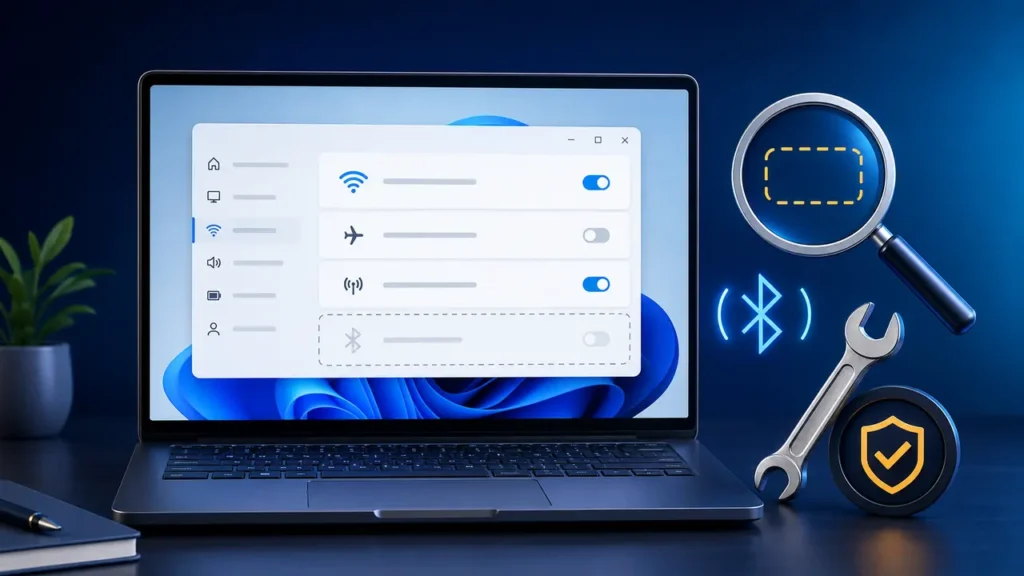
Quick answer: If the Bluetooth toggle is missing in Windows 11, first turn off Airplane mode, restart the PC, and run the Bluetooth troubleshooter in the Get Help app. Then install Windows and optional driver updates, check whether the Bluetooth adapter appears in Device Manager, and update or reinstall its driver. If the adapter is absent even after a restart and hardware scan, use the driver from your PC manufacturer or have the hardware checked.
A missing toggle is different from a device that simply will not pair. It usually means Windows cannot currently detect or enable the Bluetooth radio. The steps below move from quick settings checks to driver recovery without requiring registry edits, third-party driver tools, or hardware disassembly.
Before you start: confirm what is missing
- Press Windows + A. Check whether Bluetooth appears in Quick Settings.
- Open Start > Settings > Bluetooth & devices. Look for the main Bluetooth switch.
- Open Device Manager and look for a Bluetooth section or a wireless adapter that includes Bluetooth.
If Bluetooth works in Settings but its Quick Settings tile is missing, edit Quick Settings and add the tile. If the switch is missing from Settings as well, continue with the fixes below.
1. Confirm the PC supports Bluetooth
Some desktop PCs and older laptops do not include a Bluetooth adapter. Check the exact model specifications on the manufacturer’s support page. If the computer uses a USB Bluetooth adapter, connect it directly to a working USB port instead of an unpowered hub. Do not open the computer to inspect internal hardware.
2. Turn off Airplane mode and check the wireless switch
Press Windows + A and make sure Airplane mode is off. Some laptops also have a physical wireless switch or an Fn key with an antenna symbol. Set it to the enabled position, then reopen Settings > Bluetooth & devices.
3. Perform a full restart
Select Start > Power > Restart. Use Restart rather than Shut down because Windows can preserve part of the previous session during a normal shutdown. After signing back in, wait about a minute and check the Bluetooth page again.
4. Run the Windows Bluetooth troubleshooter
Open Start, search for Get Help, open the app, and search for Bluetooth troubleshooter. Follow the diagnostic prompts and apply only the recommended changes. Microsoft directs Windows 11 users to this automated troubleshooter for common Bluetooth detection and configuration problems.
Restart the PC if the troubleshooter makes a change. Then check both Quick Settings and Settings > Bluetooth & devices.
5. Install Windows and optional driver updates
- Open Settings > Windows Update.
- Select Check for updates and install available updates.
- Open Advanced options > Optional updates.
- If a Bluetooth, wireless, Intel, Realtek, Qualcomm, MediaTek, AMD, or PC-manufacturer driver is offered, select the relevant update.
- Restart Windows after installation.
A recent Windows upgrade can expose an incompatible Bluetooth driver, while Windows Update may provide a corrected version. Avoid unofficial “driver updater” utilities because they can install the wrong package.
6. Check the adapter in Device Manager
- Right-click Start and select Device Manager.
- Select View > Show hidden devices.
- Expand Bluetooth. Also check Network adapters and Other devices.
- If the Bluetooth adapter has a downward arrow, right-click it and select Enable device.
- Select Action > Scan for hardware changes.
A yellow warning icon indicates a driver or device error. Open the adapter’s Properties and note the Device status message before making changes; it can help the manufacturer identify the correct fix.
7. Update the Bluetooth driver
- In Device Manager, expand Bluetooth.
- Right-click the Bluetooth adapter—not a paired headset or phone—and select Update driver.
- Select Search automatically for drivers.
- Complete the prompts and restart if requested.
If Windows says the best driver is already installed, visit the support page for your exact laptop, motherboard, or wireless-card model. Download the Windows 11 Bluetooth package provided by that manufacturer. Match the model and Windows architecture carefully.
8. Reinstall the detected Bluetooth adapter
Use this step only if the adapter is visible in Device Manager. Right-click the adapter, select Uninstall device, and confirm the removal. Do not select an option to remove driver files unless the PC manufacturer specifically instructs you to do so. Restart the PC; Windows normally redetects the adapter and reinstalls its driver.
If Bluetooth does not return, install the official driver downloaded for your exact PC model and restart once more.
9. Roll back a recent driver change
If the toggle disappeared immediately after a driver or Windows update, open Device Manager > Bluetooth adapter > Properties > Driver. Select Roll Back Driver if the button is available, choose the most accurate reason, and restart. If the button is unavailable, Windows has no previous driver stored; use the manufacturer’s current driver instead.
How to verify the fix
- Settings check: Settings > Bluetooth & devices shows an on/off toggle.
- Quick Settings check: Windows + A shows the Bluetooth control or lets you add it.
- Device Manager check: the adapter appears without a warning icon.
- Pairing check: select Add device > Bluetooth and confirm a nearby accessory in pairing mode appears. You do not need to complete pairing if you are only testing detection.
When to stop and get technical support
Stop troubleshooting and contact the PC manufacturer or a qualified technician if the adapter never appears in Device Manager, repeatedly disappears, reports a persistent hardware error, or the computer has signs of liquid or impact damage. Do not open a laptop, disconnect its battery, or replace an internal wireless card unless you are trained and the manufacturer’s service procedure allows it.
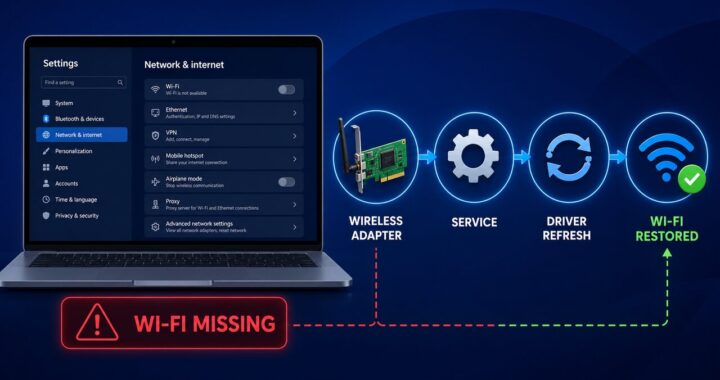
If other wireless controls are also missing, use the related guide to fix a missing Wi-Fi option in Windows 11. For an Android download problem rather than a Windows connection issue, see the Google Play Store download pending fixes.
Official sources