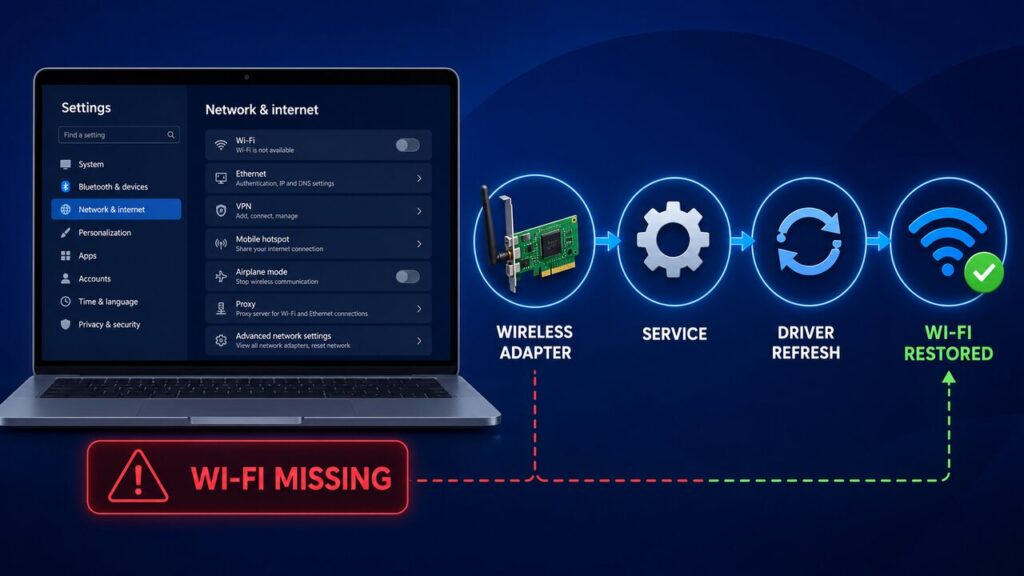
Quick answer: If the Wi-Fi option is missing in Windows 11, first restart the PC and turn Airplane mode off. Then check whether the wireless adapter is enabled in Device Manager and whether the WLAN AutoConfig service is running. Update or reinstall the manufacturer’s Wi-Fi driver if the adapter is disabled, missing, or showing an error. Use Network reset only after the earlier checks because it removes and reinstalls network adapters and can erase saved network or VPN settings.
Before you start: identify the exact symptom
This guide is for a missing Wi-Fi control—not simply a slow connection or one network that will not connect. Open Start → Settings → Network & internet and note what you see:
- Wi-Fi is completely absent: Windows may not detect an enabled wireless adapter, or WLAN AutoConfig may not be running.
- Wi-Fi appears but no networks are listed: the adapter is present, but the radio, driver, service, router, or range may be the issue.
- Wi-Fi connects but internet does not work: use connection troubleshooting rather than changing the adapter driver immediately.
Check whether another phone or computer can see the same wireless network. If no device can see it, restart the router and contact the internet provider or router manufacturer if necessary. If other devices work normally, continue with the Windows checks below.
1. Restart Windows and check Airplane mode
A normal restart can reload a stalled wireless driver and service. Save your work, select Start → Power → Restart, and check the Network & internet page again.
Next, select the network, volume, or battery area on the taskbar. Make sure Airplane mode is off. Turn Airplane mode on for about ten seconds, turn it off again, and wait briefly for the Wi-Fi control to return.
Some laptops also have a wireless switch or an Fn keyboard shortcut marked with an antenna or airplane symbol. Use only the documented control for your laptop model; do not open the computer or disconnect internal hardware.
2. Run the Windows network troubleshooter
Open the Get Help app, search for network troubleshooter, and follow the guided checks. Microsoft recommends starting with the automated network troubleshooter because it can identify common adapter, service, and configuration problems without changing unrelated settings.
After it completes, restart the computer if requested. Record any named adapter, error code, or recommended action before moving to manual steps.
3. Check for the wireless adapter in Device Manager
Right-click Start and select Device Manager. Expand Network adapters and look for a device containing terms such as Wireless, Wi-Fi, WLAN, or 802.11.
- If the adapter has a downward arrow, right-click it and select Enable device.
- If it has a yellow warning symbol, open Properties and record the Device status error before changing the driver.
- If it is absent, select View → Show hidden devices, then Action → Scan for hardware changes.
If no wireless adapter appears after a restart and hardware scan, visit the laptop or motherboard manufacturer’s support page using another device. Confirm that the model actually includes Wi-Fi and download the correct Windows 11 driver. A missing adapter can also indicate a disabled firmware setting or hardware fault; use the manufacturer’s instructions or qualified support instead of opening the device.
4. Confirm WLAN AutoConfig is running
Press Windows key + R, enter services.msc, and select OK. Find WLAN AutoConfig. This Windows service discovers and connects to wireless networks through the Wi-Fi adapter.
- If the service is stopped, right-click it and select Start.
- Open Properties and confirm the Startup type is Automatic.
- If it is already running, select Restart once.
Do not change unrelated Windows services. If WLAN AutoConfig is missing entirely or fails with a dependency error, record the exact message and use Microsoft or device-manufacturer support rather than downloading third-party service files.
5. Disable and re-enable the Wi-Fi adapter
In Device Manager → Network adapters, right-click the wireless adapter and select Disable device. Wait ten seconds, right-click it again, and select Enable device.
This reloads the adapter without uninstalling its driver. Reopen Settings → Network & internet and check whether Wi-Fi has returned.
6. Install Windows and optional driver updates
Connect temporarily through Ethernet or phone USB tethering if possible. Go to Settings → Windows Update, select Check for updates, install applicable updates, and restart.
Then check Windows Update → Advanced options → Optional updates for a network-driver update. Prefer Windows Update or the computer manufacturer’s official support page. Avoid generic “driver updater” utilities, which can install a driver for the wrong wireless chipset.
7. Update or reinstall the manufacturer’s Wi-Fi driver
Before uninstalling anything, download the correct wireless driver for the exact laptop or motherboard model and save it locally or on a USB drive. Then:
- Open Device Manager → Network adapters.
- Right-click the wireless adapter and choose Update driver.
- Try Search automatically for drivers, or use the official driver package you downloaded.
- Restart and test the Wi-Fi control.
If Microsoft or the manufacturer specifically recommends reinstalling the adapter, right-click it, choose Uninstall device, and restart Windows. Windows will normally attempt to reinstall the adapter. If it does not, run the manufacturer’s saved driver installer. Do not select an option to remove the driver package unless you already have the correct replacement and the manufacturer’s instructions require it.
8. Check whether Windows can see a wireless driver
Open Terminal or Command Prompt and run this read-only command:
netsh wlan show driversIf Windows lists the wireless interface and driver capabilities, the adapter is being recognized. If it reports that the Wireless AutoConfig service is not running, return to the WLAN AutoConfig step. If there is no wireless interface, focus on Device Manager, the manufacturer’s driver, firmware settings, or hardware support.
9. Use Network reset only as the final software step
Go to Settings → Network & internet → Advanced network settings → Network reset. Read the warning, then select Reset now only if the previous steps did not restore Wi-Fi.
Network reset removes installed network adapters and reinstalls them after the PC restarts. You may need to reconnect to Wi-Fi, re-enter the network password, reinstall VPN software, or reconfigure virtual network adapters. On a work or school computer, contact the administrator before using it.
How to verify that the fix worked
- Open Settings → Network & internet and confirm the Wi-Fi section and toggle are visible.
- Open the taskbar network panel and confirm nearby wireless networks appear.
- Connect to your own network and verify that its status shows Connected.
- Open a web page and confirm internet access.
- Restart the PC once more and verify that Wi-Fi remains available.
- Optionally run
netsh wlan show interfacesto confirm Windows reports a wireless interface and connection state.
When to stop troubleshooting
Contact the computer manufacturer or a qualified technician when the wireless adapter never appears in Device Manager, repeatedly returns an error after the official driver is installed, disappears when the laptop moves or resumes from sleep, or the device shows signs of liquid, impact, heat, swelling, or electrical damage. Do not open a powered laptop, bypass battery protections, or handle internal antenna and power connections without appropriate training.
More practical troubleshooting
Browse the Computer & Laptop Fixes archive for additional Windows and hardware diagnostics as they are published. SolveFast also maintains solution-focused guides across mobile, appliances, WordPress and everyday technology.
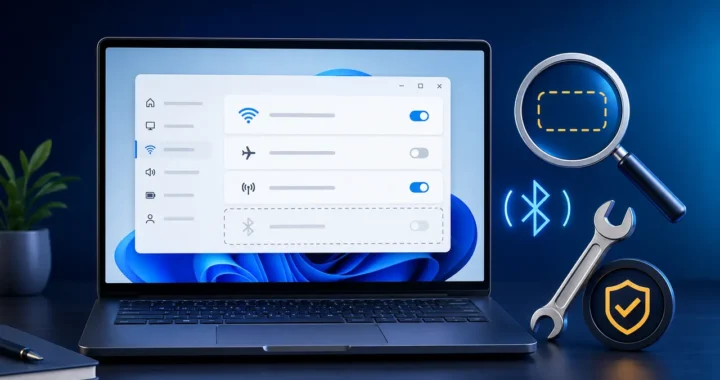
If Wi-Fi is available but the separate wireless control has disappeared, follow the Windows 11 Bluetooth toggle missing guide for safe settings, update and driver checks.
Primary sources
- Microsoft Support: Fix Wi-Fi connection issues in Windows
- Microsoft Learn: Wireless network connectivity troubleshooting
- Microsoft Support: Set up a wireless network in Windows
- Microsoft Support: Analyze the wireless network report
Last reviewed: July 2026. Windows menu names can change with later updates.