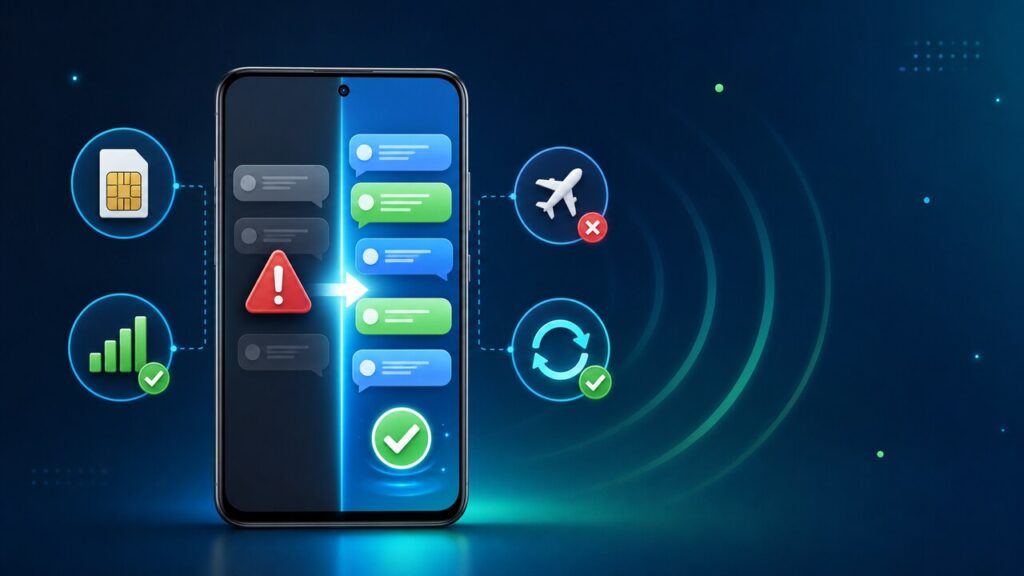
Quick answer: If your Android phone is not receiving text messages, restart it, turn Airplane mode off, confirm you have cellular signal, and make sure Google Messages is the default SMS app. Then check blocked contacts, available storage, RCS status, your SIM and carrier plan. If you recently moved from an iPhone, deregister iMessage so messages to your number stop routing through Apple.
Work through the checks below in order. Menu names vary slightly by phone maker and Android version, so use Settings search if a label is different.
First, identify which messages are missing
The fastest fix depends on the pattern. Before changing settings, ask someone to send you a short test message and note what fails:
- No messages from anyone: check signal, Airplane mode, the default SMS app, SIM status and carrier service.
- Messages missing from one person: check their number, country code, blocked contacts and spam.
- Only messages from iPhone users are missing: deregister iMessage if your number was previously used on an iPhone.
- Only pictures or group messages fail: verify mobile data and MMS/APN settings.
- Only RCS chats fail: check the RCS connection status in Google Messages.
1. Restart the phone and refresh the cellular connection
- Press and hold the power button, then tap Restart.
- After the phone reconnects, open Quick Settings and confirm Airplane mode is off.
- Check for cellular signal bars. If the signal is weak, move outdoors or to another location and test again.
- If the phone supports dual SIM, confirm the active SIM is enabled under Settings > Network & internet > SIMs.
A restart clears temporary radio and app problems without deleting messages or settings.
2. Set the correct default SMS app
Android sends and receives ordinary SMS/MMS through one default texting app. If you installed or changed messaging apps, the wrong default can make messages appear missing.
- Open Settings.
- Tap Apps > Default apps > SMS app.
- Select Google Messages or the carrier-supported messaging app you intend to use.
- Open that app and ask for another test message.
Google specifically recommends verifying the default texting app when troubleshooting sending or receiving problems.
3. Check blocked numbers, spam and the contact details
If messages are missing from only one person, the network is probably working. Check the conversation-specific settings instead.
- Open Google Messages and tap your profile picture.
- Open Spam & blocked and review the list.
- Unblock the sender only if you recognize and trust the number.
- Open the contact and verify the full phone number. Add the correct country code for an international sender.
- If the saved contact looks incorrect, delete it and add the number again.
Do not disable spam protection globally just to receive one expected message. Verify the sender first.
4. Update Google Messages and Android
- Open the Google Play Store.
- Tap your profile icon, then Manage apps & device.
- Install any available Google Messages update.
- Open Settings > System > Software update and install a stable Android update if offered.
- Restart the phone after updates finish.
Google’s Android troubleshooting guidance recommends restarting and updating the affected app before moving to more disruptive steps.
5. Free storage if the phone is nearly full
Google Messages may stop sending or receiving when the device has too little free space. Check Settings > Storage. Remove downloads you no longer need, uninstall unused apps, or move personal photos to a backed-up location. Do not delete message data unless you have a verified backup and understand what will be removed.
6. Check RCS chat status
RCS uses an internet connection, while SMS/MMS normally uses your carrier service. A problem with one does not always affect the other.
- Open Google Messages.
- Tap your profile picture, then Messages settings > RCS chats.
- Read the status. Connected means RCS is ready.
- If it says Trouble connecting or Awaiting retry, check mobile data or Wi-Fi and tap Retry when available.
- If your carrier reports RCS is unsupported or disabled, contact the carrier. Do not repeatedly reset the phone.
If you recently switched messaging apps or phones, Google notes that turning off RCS on the previous setup may be necessary before messages work normally on the new one. If RCS itself remains stuck on verification, follow our Google Messages RCS stuck on Setting up fixes.
7. Deregister iMessage after switching from an iPhone
If your number was previously attached to iMessage, Apple devices may continue trying to deliver messages through iMessage instead of SMS/RCS.
If you still have the old iPhone
- Put the SIM back in the iPhone if required and connect it to cellular service.
- Open Settings > Apps > Messages and turn off iMessage.
- Open Settings > Apps > FaceTime and turn off FaceTime.
If you no longer have the iPhone
Use Apple’s official Deregister iMessage page. Apple says delivery can improve immediately, although some sending devices may take several hours to recognize the change.
8. Check the SIM, plan and carrier service
- Confirm your mobile account is active and has enough credit or an SMS allowance.
- Power off the phone before reseating a physical SIM. Do not force the tray.
- For eSIM, confirm the line is enabled in Settings.
- Check your carrier’s status page or contact support to ask whether SMS/MMS service is disrupted or barred on your line.
If calls and mobile data are also failing, the problem is more likely the SIM, account or carrier network than Google Messages.
9. Fix MMS and group-message problems
Pictures and many group conversations use MMS, which needs mobile data and correct carrier settings.
- Turn mobile data on and test again.
- In Google Messages, open Messages settings > Advanced > Group messaging.
- Select the group MMS option if you want replies to remain in one conversation.
- If MMS still fails, open your phone’s mobile network settings and reset the APN to the carrier default. Do not enter APN values from an unknown website.
- Restart the phone and test with a small image.
10. Clear the Google Messages cache
Use this only after the connection and account checks above.
- Open Settings > Apps > Google Messages.
- Tap Storage & cache > Clear cache.
- Tap Force stop, reopen Messages and test.
Do not tap Clear storage or Clear data unless you understand the consequences and have backed up anything important. Clearing the cache is the safer first step.
How to verify the fix
- Ask one Android user and one iPhone user to send a plain text to your phone number.
- Reply to each message.
- Send and receive a small picture to test MMS.
- If you use RCS, confirm the status remains Connected.
- Restart the phone once more and repeat one test to ensure the fix persists.
If only one sender still fails, recheck that contact and ask them to start a new conversation using your full number. If no senders work after all checks, contact your carrier and provide the test time, affected number, signal status and any on-screen error.
When to contact your carrier or phone manufacturer
Contact the carrier when SMS/MMS fails for everyone, the SIM is not recognized, your account may be restricted, or calls and mobile data also fail. Contact the phone manufacturer when the SIM works in another compatible phone but messaging consistently fails on this device. Avoid factory-resetting the phone until support confirms it is necessary and your data is backed up.
Related SolveFast guides
- Browse more Mobile & App Fixes.
- If another device has a connection problem, see Windows 11 Wi-Fi option missing: fixes.
Official sources