
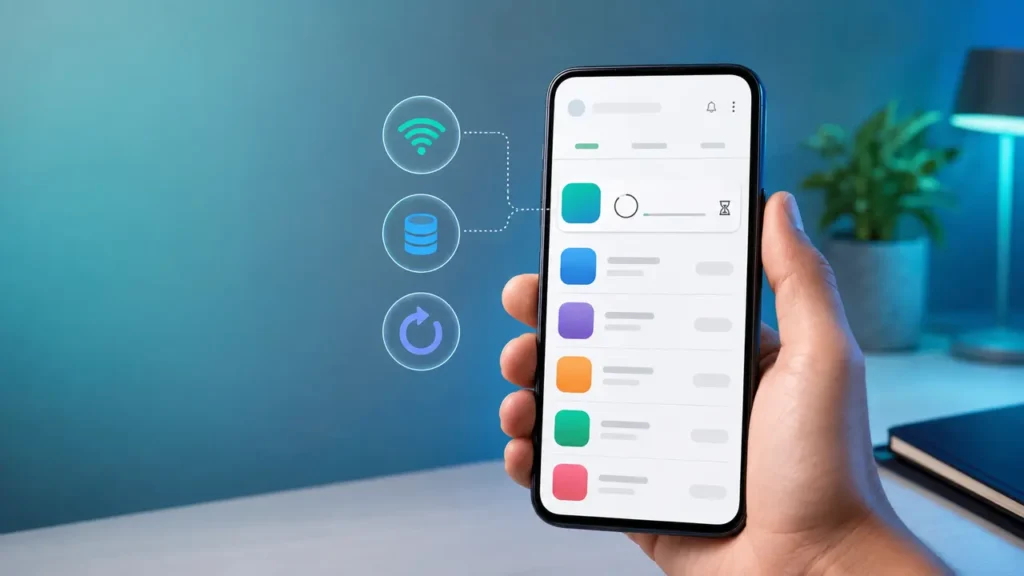
If Google Play Store is stuck on “Pending,” first cancel other queued downloads, confirm your connection and free storage, then restart the phone and try one app at a time. If downloads still do not start, clear the Play Store cache and data, update Android, and reinstall Play Store updates. You normally do not need to remove your Google Account.
The Pending message means Google Play has not started transferring the app yet. The cause is usually another update occupying the queue, a network preference, low storage, a temporary Play Store process problem, or an app that is not compatible with the device. Follow the fixes in order and test after every step so you know what solved it.
1. Cancel other downloads and update one app
Google Play may show Pending while it processes other installations or automatic updates. Open Play Store → profile picture → Manage apps & device. Under updates or downloads in progress, cancel items you do not need immediately. Return to the problem app and tap Install or Update again.
Verify: the status should change from Pending to a percentage or download size within about a minute. If one app starts, let it finish before starting the next. If every item remains pending, continue below.
2. Test the internet connection
Open a website in your browser to confirm the phone actually has internet access. If pages do not load, toggle airplane mode on for 10 seconds and turn it off, then reconnect to a trusted Wi-Fi network. If possible, test the download once on Wi-Fi and once on mobile data to isolate the connection.
Avoid public networks that require a browser sign-in, VPNs that filter Google services, and data connections with a reached allowance. If other devices also cannot use the same Wi-Fi, troubleshoot the router or internet service first.
Verify: load two new webpages, then reopen the Play Store and retry one small app. If browsing works but Play remains pending, check its network preference.
3. Allow downloads on the network you are using
In Google Play Store, open profile picture → Settings → Network preferences → App download preference. Choose the option appropriate for your connection. If the setting says Wi-Fi only while the phone is using mobile data, the download will wait.
Also check Settings → Network & internet → Data Saver. Android menu names vary by manufacturer. If Data Saver is enabled, confirm Google Play Store is permitted to use background or unrestricted data. Do not disable a work or family policy that you do not manage.
Verify: retry the app while the chosen network is connected. A progress indicator should replace Pending.
4. Check available storage
Open Settings → Storage. If space is low, remove downloads you no longer need, uninstall an unused app, or move personal media to a trusted backup location. Empty the device’s trash or recycle bin if your phone has one. Do not delete folders you do not recognize.
The installation may require more free space than the app’s listed download size because Android also needs room to unpack and optimize it.
Verify: after freeing space, restart the phone and try the download again. If only one large app fails, compare its size with the available space.
5. Restart the phone and reopen Play Store
Press and hold the power button, choose Restart, and wait for Android to load fully. Then open the Play Store directly rather than from an old notification. Google lists restarting and closing/reopening Play Store among its basic download troubleshooting steps.
Verify: start one download and keep the Play Store open for a minute. If it begins, allow it to complete before restoring multiple automatic updates.
6. Set the date and time automatically
Incorrect time can interfere with secure connections to Google services. Open Settings → System → Date & time or search Settings for “date and time.” Turn on automatic time and automatic time zone. Wait a minute, then restart the Play Store.
Verify: confirm the displayed time and zone are correct, then retry the download. If automatic time is controlled by an organization, contact its administrator rather than overriding the policy.
7. Install available Android system updates
Connect to power and Wi-Fi, then open Settings → System → Software update or the equivalent manufacturer menu. Install an available stable update and restart when prompted. Back up important data first, especially on an older device.
Verify: return to Settings and confirm there is no pending system update, then open Play Store and retry. If only one app still fails, skip to the compatibility check in step 9.
8. Clear Google Play Store cache and data
Google identifies clearing the Play Store cache as the most common fix for Play Store download problems. Open Settings → Apps → See all apps → Google Play Store → Storage & cache. Tap Clear cache first. Reopen Play Store and test.
If Pending remains, return to the same screen and tap Clear storage or Clear data. This resets the Play Store app’s local settings and may require you to reselect preferences such as parental controls or purchase authentication. It does not uninstall your downloaded apps.
Verify: reopen Play Store, wait for it to load your account, and try one download. If it starts, review your Play Store network and update preferences afterward.
9. Reinstall Play Store updates or check one-app compatibility
Open Settings → Apps → Google Play Store, tap the three-dot menu, and choose Uninstall updates if your phone provides that option. This returns the system Play Store app to its factory version; it does not remove your installed apps. Restart the phone, open Play Store, then go to profile picture → Settings → About → Update Play Store.
If every other app downloads except one, open that app’s Play Store page. Look for a message saying it is unavailable for the device, country, Android version, or account. Google recommends treating a one-app failure separately: check availability, then uninstall and reinstall that app if it was previously installed and its data is backed up.
Verify: confirm Play Store reports that it is up to date, then install a small known-compatible app. If that works, the original app—not the store queue—is the likely problem.
What not to do first
- Do not download a replacement Play Store APK from an unknown website.
- Do not clear Google Play services data unless current official guidance for your exact issue specifically requires it.
- Do not remove your Google Account before confirming that important contacts, photos and app data are synchronized.
- Do not factory-reset the phone for a download queue problem until you have a verified backup and official device-specific support.
When to contact support
Contact your phone manufacturer or Google Play support if all compatible apps remain pending after these steps, Play Store repeatedly crashes, the device cannot complete Android updates, or the problem affects a supervised, school, or work account. Record the phone model, Android version, Play Store version, available storage, network tested, and any error code.
Final verification checklist
- One app moves from Pending to a percentage.
- The app installs and opens successfully.
- Other queued updates start one at a time.
- Play Store shows the current version under Settings → About.
- The issue does not return after restarting the phone.
For more Android troubleshooting, see Android Phone Not Receiving Text Messages: 10 Fixes or browse the Mobile & App Fixes category. If the phone’s Wi-Fi works but a Windows computer has no wireless control, use our Windows 11 Wi-Fi option missing guide.
If an app installs but closes or stops responding afterward, use our Android app keeps crashing checklist for the next diagnostic steps.
Official sources


