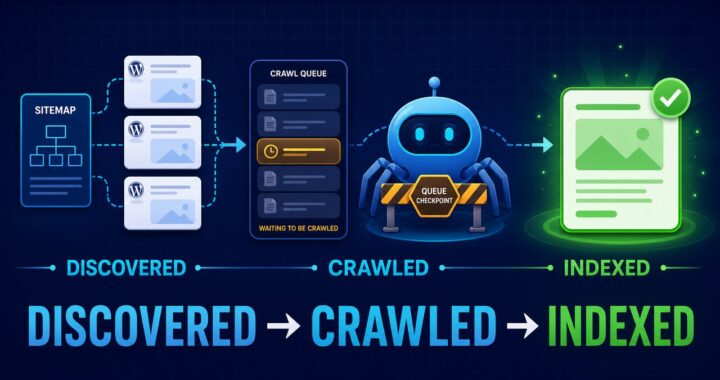

Quick answer: “Indexed, though blocked by robots.txt” means Google knows the URL and has indexed it without crawling its content because a robots.txt rule prevents access. First decide whether the URL should appear in Search. If it should, remove the blocking rule. If it should not, allow Google to crawl the URL and add a noindex directive instead. Google cannot reliably see a page-level noindex while robots.txt blocks the page.
What this Search Console warning means
Robots.txt controls crawling, not guaranteed indexing. Google may discover a blocked URL through internal links, external links or a sitemap and index the address using information from those sources. Because Google cannot crawl the page, the search result may have a limited title or snippet.
This warning therefore describes conflicting signals: the site exposes the URL but prevents Google from reading it. The correct fix depends on the page’s purpose.
1. Export the affected URLs and classify them
Open Search Console → Indexing → Pages, select Indexed, though blocked by robots.txt, and export the examples. Group each URL into one of these outcomes:
| URL type | Correct outcome | Action |
|---|---|---|
| Useful post, page or category | Crawl and index | Remove the robots.txt block |
| Private, thin or unwanted page | Crawl but do not index | Remove the block, then add noindex |
| Login, cart or admin function | Usually keep inaccessible | Confirm it is not linked or submitted; use authentication where privacy matters |
| Old URL replaced by another page | Consolidate | Use a relevant permanent redirect |
Do not remove every Disallow rule in bulk. WordPress normally blocks /wp-admin/ while allowing /wp-admin/admin-ajax.php, and that is not a problem for public posts.
2. Find the exact robots.txt rule
Inspect one example URL in Search Console and open the live robots.txt file at https://yourdomain.com/robots.txt. Look for a matching rule in the applicable user-agent group. Common accidental WordPress blocks include:
Disallow: /, which blocks the entire site- A rule for
/blog/,/category/or another public directory - A rule copied from a staging site
- Security, maintenance or crawl-optimization settings that generate robots rules
- A physical robots.txt file that overrides WordPress’s virtual file
- A CDN or hosting rule serving a different file than the one edited in WordPress
Paths are case-sensitive, and a narrow Allow rule can override a broader block when it is more specific. Diagnose the rule that matches the affected URL rather than guessing from the filename alone.
3. Fix a page that should be indexed
For an important post or landing page, remove or narrow only the rule that blocks it. In WordPress with Yoast SEO:
- Go to Yoast SEO → Tools → File editor.
- Copy the existing robots.txt content into a backup before editing.
- Remove or narrow the specific
Disallowrule affecting the public page. - Save the robots.txt file.
- Open the public robots.txt URL in a private browser window and confirm the saved version is served.
If Yoast’s File editor is missing, file editing may be disabled or a physical robots.txt file may need to be changed through your host. Do not edit .htaccess when the problem is only a robots.txt directive.
Keep the preferred page in your sitemap and continue linking to it internally. If Search Console later reports that Google crawled the page but did not index it, use the separate Crawled – currently not indexed WordPress checklist.
4. Fix a page that should not be indexed
Robots.txt is not the correct tool for keeping a URL out of Google Search. Google must crawl the page to read a noindex instruction. Use this sequence:
- Remove the robots.txt rule blocking the URL.
- Edit the page and open Yoast SEO → Advanced.
- Set Allow search engines to show this content in search results? to No.
- Update the page and verify its source contains a robots
noindexdirective. - Remove the URL from XML sitemaps and prominent internal links when it is not meant to be discovered.
- Let Google recrawl the URL and process the instruction.
Do not put Noindex: in robots.txt. Google does not support that as a robots.txt rule. Also do not re-block the URL immediately after adding noindex; Google needs crawl access to see the directive.
5. Check whether a plugin or host is rewriting robots.txt
If your edit does not appear publicly, compare the WordPress editor with the file served at /robots.txt. Clear only the relevant page cache, then check again. A security plugin, maintenance mode, CDN, hosting panel or physical server file may override WordPress’s virtual robots.txt response.
Do not make broad cache or firewall changes for this warning. Identify which layer returns the rule, adjust that single source, and preserve a copy of the previous configuration.
6. Remove contradictory discovery signals
For a page that should rank, make the signals consistent: allow crawling, use a self-referencing canonical, include the preferred URL in the XML sitemap, and link to it from relevant pages. If the sitemap cannot be retrieved, follow the Yoast sitemap Couldn’t fetch troubleshooting guide.
If Google selects another version after the robots block is removed, compare both URLs with the Duplicate, Google chose different canonical WordPress guide.
7. Verify the fix in the correct order
- Open the live robots.txt file and confirm the unwanted block is gone.
- Use URL Inspection and run Test live URL.
- For an indexable page, confirm crawling is allowed, the response is HTTP 200 and the canonical is correct.
- For an excluded page, confirm crawling is allowed and the live page exposes
noindex. - Return to the Page indexing report and start Validate fix when the examples now behave consistently.
The report can continue showing the old state until Google recrawls the URL. Compare the last crawl date and live test before making another change. Repeatedly editing robots.txt or requesting validation does not make recrawling immediate.
What not to do
- Do not use robots.txt as a guaranteed removal method.
- Do not block a page that Google must crawl to see
noindex. - Do not delete all WordPress robots rules without checking their purpose.
- Do not use Search Console’s temporary removal tool as a permanent indexing solution.
- Do not block CSS or JavaScript required for Google to understand a public page.
- Do not expose private content and rely on robots.txt for security; use authentication.
Sources
- Google Search Console: Page indexing report
- Google Search Central: Robots meta tag and X-Robots-Tag specifications
- Yoast: The robots.txt file in Yoast SEO
Last reviewed: July 2026.