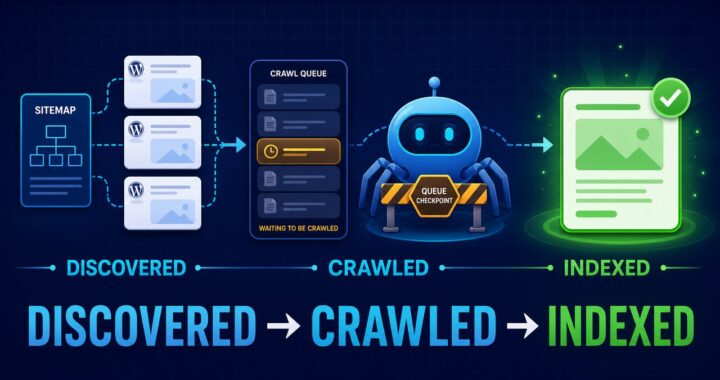

Quick answer: “Duplicate, Google chose different canonical than user” means Google found multiple URLs with the same or very similar content and selected a different URL from the one your site declared as canonical. Start by comparing the user-declared and Google-selected canonicals in URL Inspection. Then remove conflicting signals: duplicate content, inconsistent internal links, mixed sitemap URLs, redirect chains, or an incorrect Yoast canonical.
Is this always a problem?
No. If Google selected the URL you actually want indexed, the status may need no action. It becomes a problem when Google indexes an unwanted parameter URL, an old domain, an HTTP version, a category or attachment page, or another article instead of your preferred page.
1. Compare both canonical URLs in Search Console
Open Search Console → URL Inspection and inspect the excluded URL. Expand Page indexing and record:
- User-declared canonical
- Google-selected canonical
- Last crawl date
- Referring sitemap
- Whether indexing is allowed
Open both URLs side by side. Do not change settings until you understand why Google considers them duplicates.
2. Decide which URL should remain
Choose one URL that gives users the most complete answer and uses the final HTTPS hostname. That page should be indexable, return HTTP 200, contain the main content, and be the URL used in menus, internal links and the XML sitemap.
If both pages serve a genuine, different search intent, make their titles, headings, answers and supporting evidence clearly different. A canonical tag cannot compensate for two pages that are nearly identical but both intended to rank.
3. Check the canonical in the page source
View the preferred page source and search for rel="canonical". A normal WordPress post should usually contain one self-referencing canonical using the full HTTPS URL. Check that it does not point to a staging site, old domain, HTTP version, wrong category path or another post.
4. Correct a manual Yoast canonical
Yoast normally creates the correct self-referencing canonical automatically. To check a manual override, edit the post, open Yoast SEO → Advanced, and inspect the Canonical URL field.
- Leave the field empty to use Yoast’s automatic canonical.
- If you intentionally consolidate the page, enter the complete preferred URL including
https://. - Do not put multiple URLs in the field.
After saving, verify the source again. Yoast notes that it may not output a canonical on a page marked noindex, so check indexing permission too.
5. Make sitemap signals consistent
Only preferred canonical URLs should appear in the XML sitemap. Remove or exclude redirected, deleted, duplicate and noindexed versions. Google treats sitemap inclusion as a weaker canonical signal than redirects or rel="canonical", but contradictory sitemap URLs still create confusion.
If the sitemap itself cannot be retrieved, use our Yoast sitemap Couldn’t fetch checklist.
6. Link internally to the preferred URL
Update navigation, related-post links, breadcrumbs and contextual links so they consistently point to the canonical version. Avoid linking to HTTP, tracking-parameter, attachment, print or old-category versions. Google specifically recommends linking internally to the canonical URL.
7. Redirect retired duplicates
If a duplicate page has no reason to remain accessible, use a permanent server-side redirect to the preferred page. A redirect is a strong canonicalization signal. Do not redirect unrelated pages merely to remove an indexing status. If Search Console lists the old URL as excluded, use the Page with redirect WordPress guide to verify the response, destination, sitemap and internal links.
8. Remove WordPress duplicate sources
Common WordPress duplicates include demo pages, attachment pages, author archives on single-author sites, empty tag archives, URL parameters, HTTP copies and alternate homepages. Delete unused demo content, redirect true duplicate attachment pages, and noindex low-value archives when they do not deserve search visibility.
9. Consolidate overlapping articles
If two posts answer the same question, merge the strongest material into one page, redirect the weaker URL, and update internal links. Changing only the canonical tag while keeping both articles equally prominent sends mixed signals.
10. Request indexing after the signals agree
Use URL Inspection to test the live preferred URL. Confirm that it returns HTTP 200, is allowed for indexing, and exposes the intended canonical. Request indexing once after meaningful corrections. Google may still choose a different canonical because declarations are signals rather than commands.
Decision table
| Finding | Best action |
|---|---|
| Google selected the URL you prefer | No action may be needed |
| Yoast canonical points to the wrong page | Remove the override or enter the correct full URL |
| Old URL duplicates the current page | 301 redirect old to current |
| Two articles target the same problem | Merge and redirect the weaker article |
| Parameter URL is selected | Strengthen canonical, sitemap and internal-link consistency |
| Pages are genuinely different | Make their search intent and content distinct |
What not to do
- Do not use robots.txt to choose a canonical.
- Do not use Search Console’s removal tool for canonicalization.
- Do not canonicalize every weak page to the homepage.
- Do not specify one canonical in HTML and another in the sitemap.
- Do not request indexing repeatedly without fixing conflicting signals.
If Google crawls the preferred page but still excludes it, work through the Crawled – currently not indexed WordPress checklist.
Sources
- Google: Specify canonical URLs and consolidate duplicates
- Google Search Console: Page indexing report
- Yoast: Change the canonical URL in WordPress
Last reviewed: July 2026.